Accessibility
Turn on KeyClean in Accessibility
KeyClean requires macOS Accessibility permission to block keyboard input and mouse or trackpad clicks during cleaning. KeyClean does not record what you type.
-
1
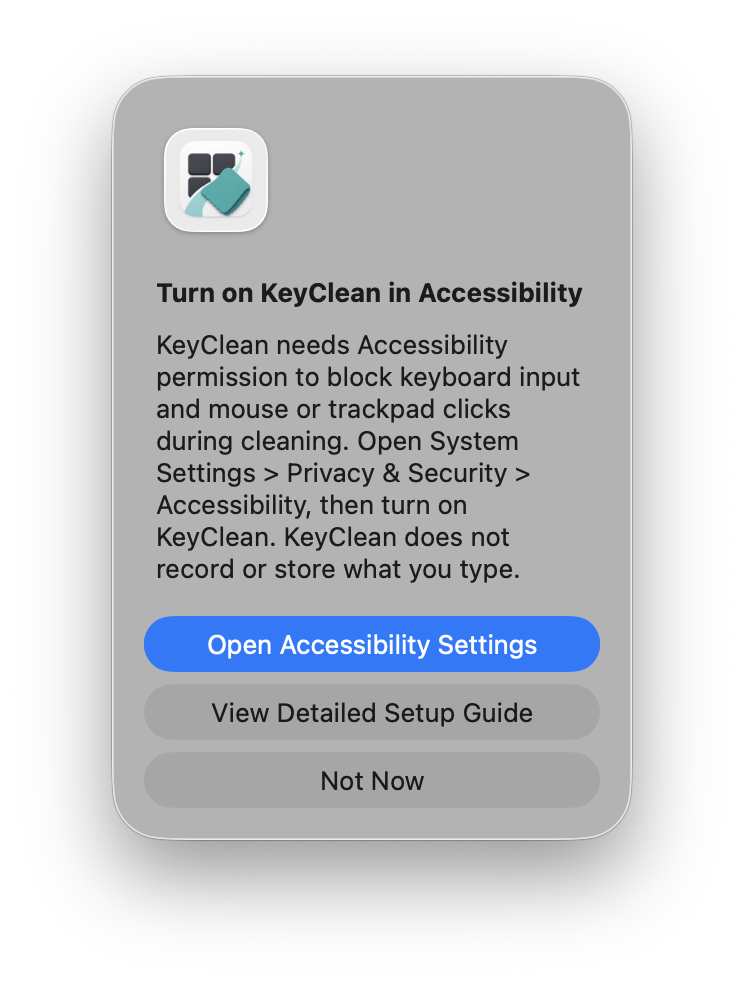
Open settings from KeyClean
If Accessibility permission is not enabled yet, KeyClean shows a setup alert. Click “Open Accessibility Settings”.
The permission is used to block input during cleaning. It is not used to record what you type.
-
2
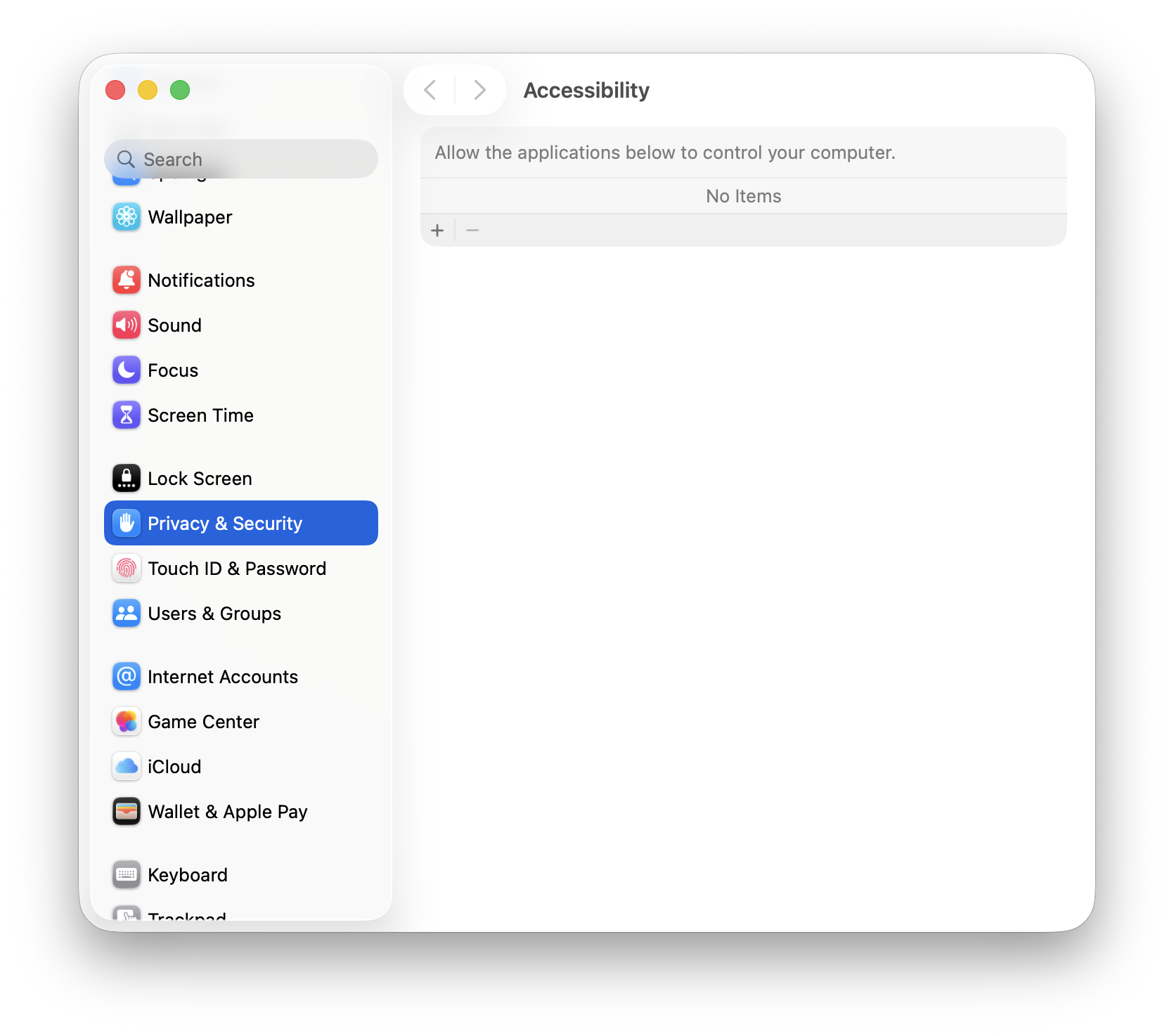
Open the Accessibility pane
Open System Settings > Privacy & Security > Accessibility.
Do not use System Settings > Accessibility.
At first, KeyClean may not appear in the list. You may see “No Items”.
-
3
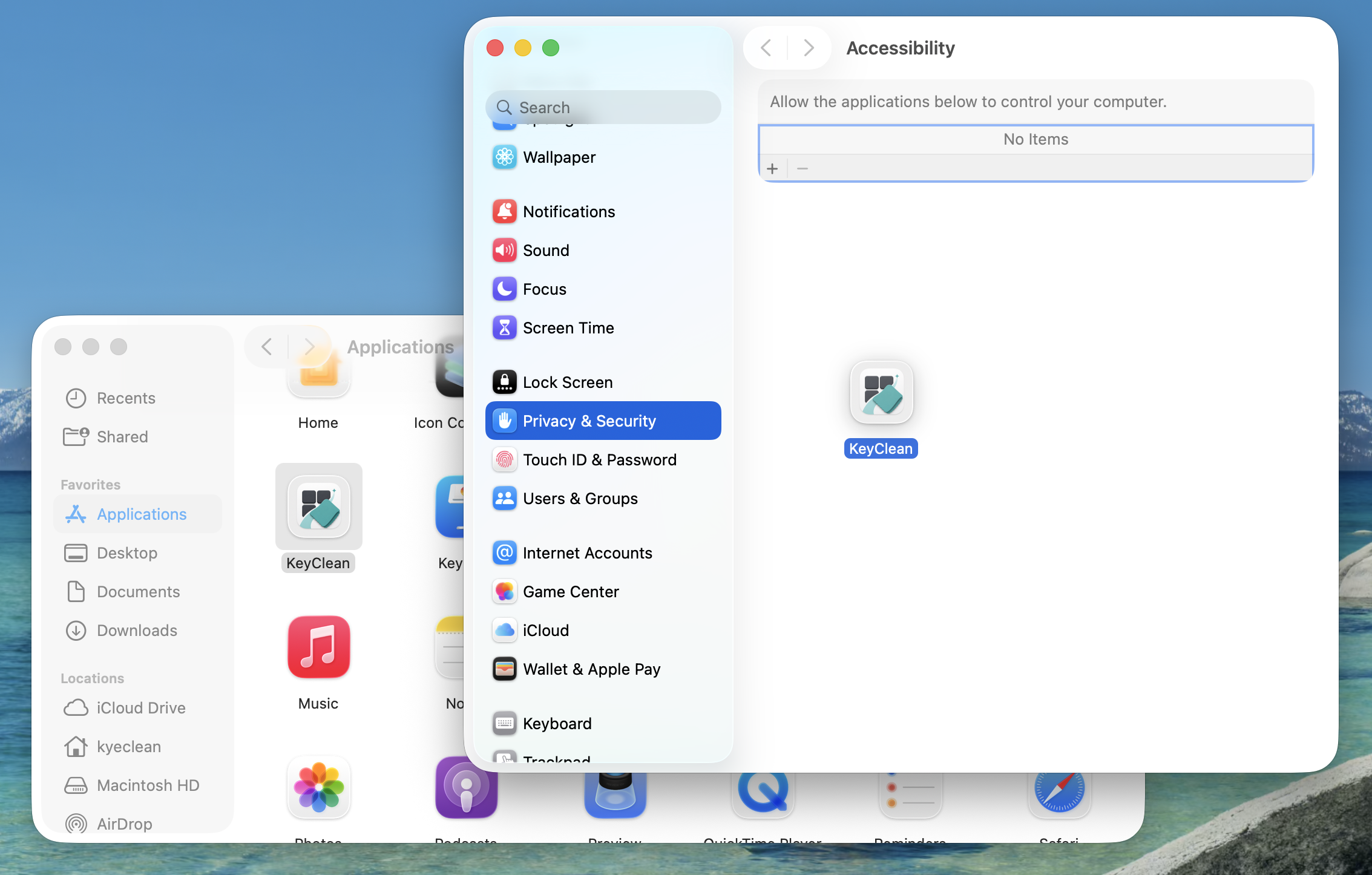
Drag KeyClean from Applications
Open the Applications folder in Finder, then drag KeyClean into the Accessibility list.
You can also click the “+” button below the list, open Applications, and choose KeyClean manually.
-
4
Allow the macOS confirmation
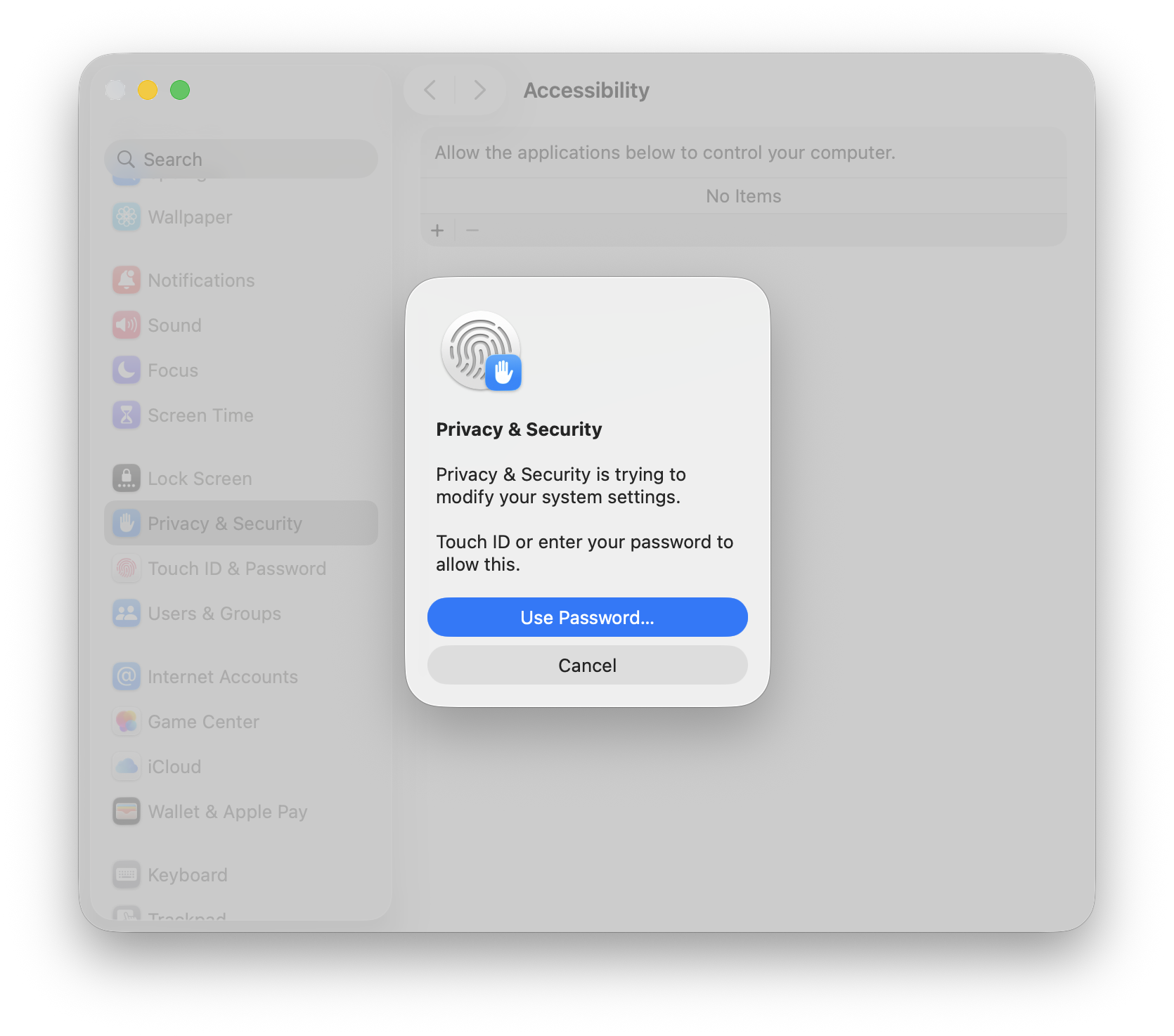
macOS may ask for Touch ID or your password before it lets KeyClean be added. Allow the change.
-
5
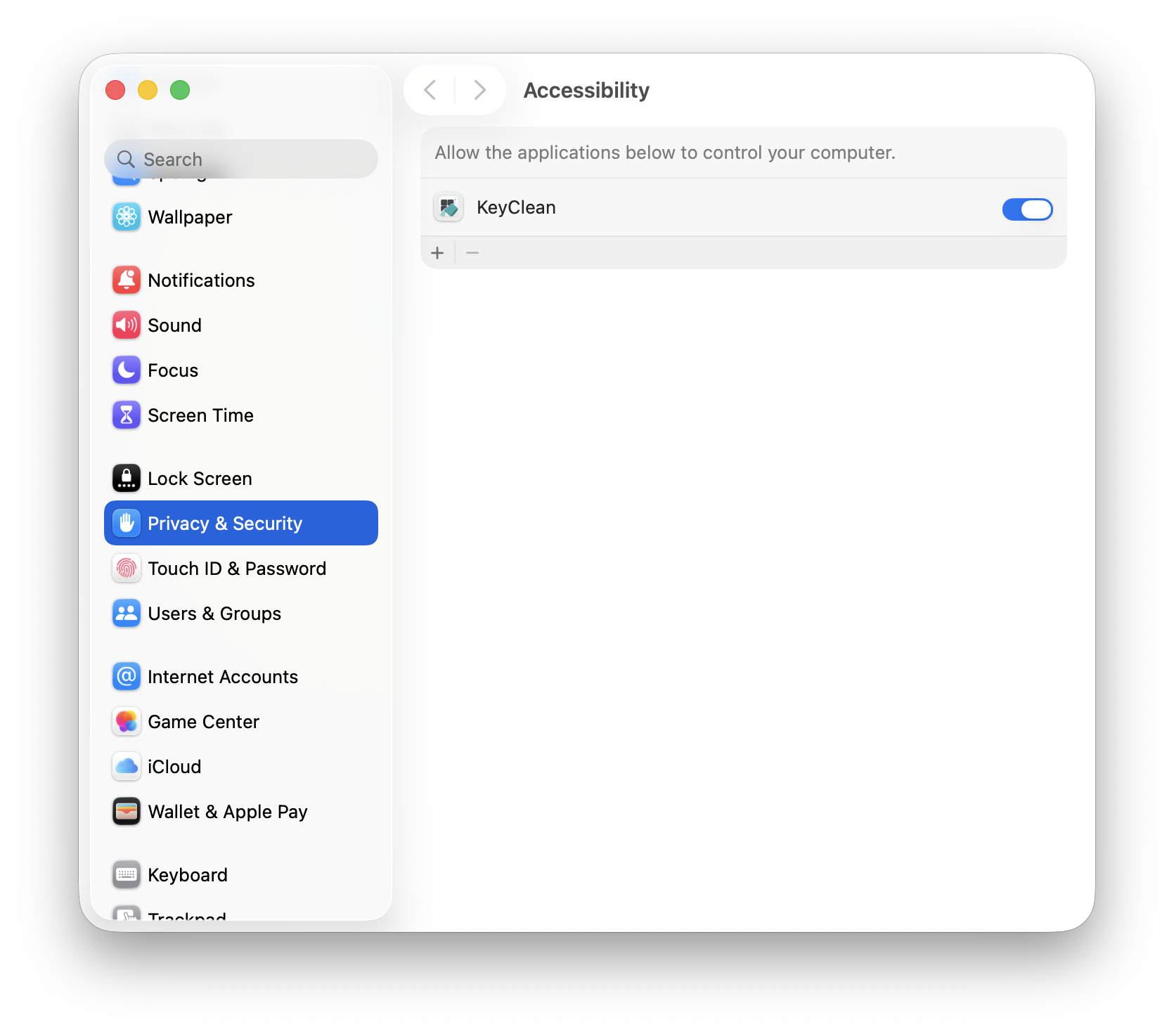
Confirm KeyClean is on
Setup is complete when KeyClean appears in the Accessibility list and its switch is on. Return to KeyClean and start input blocking.